Character Sheet
Select or create a character page
A character sheet is a wiki page that Rolz uses as your current character. The selection is saved separately for each room.
- Open My Settings and use the My Character menu to select a wiki page.
- In Table mode, use the Create button beside the menu to create and select a new page.
- You can also create a page in the room wiki. Edit the page and set its page type to Character to identify its purpose.
Add fields
Editable fields
Use [field NAME] to add an editable field. NAME is also the variable name for dice codes.
- [field STR] creates a field named STR:
- [field "Strength" STR] adds a visible label: Strength
- [field "Strength" STR default=3] sets an initial value: Strength
- [text "Feats" feat1] creates a multiline field named feat1:
Feats
Fields for specific game systems
Some field types add controls or calculations.
- [field "Strength" STR t=5e] stores a D&D 5e ability score and a miscellaneous modifier. STR contains the calculated ability modifier.
- [field "Weapon Skill" WS t=wh] stores a WFRP starting value and modifier. WS contains their total.
- [field "Advantage" Adv t=adv] adds plus and minus controls.
Static values
Use [const NAME VALUE] for a value that users can change only by editing the page source.
- [const STR +3] appears as: STR: +3
Add pool fields
Use [poolfield] for a resource that characters can spend and restore.
- [poolfield "Initiative" ini] appears as: Initiative
- !ini_full is the full pool.
- !ini_cur is the available amount.
- !ini is the amount currently in use.
Add skill lists
Use [skills] to add an editable skill list.
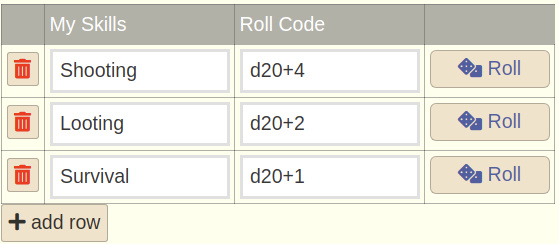 Name each list if the page has more than one:
- [skills myskills]
- [skills myattacks]
- [skills "My Skills" myskills] adds a visible title.
- @0 is the row name.
- @1 is the visible value or bonus.
- @2 is the roll code.
- @3 is the notes field.
Read character values in dice codes
Use !NAME or var("NAME") to read a field from your selected character page.
- var("goblin.HP") reads HP from a page named goblin.
Name conflicts
Personal macros take precedence over character fields. Avoid macro names that match field names.
When a roll comes from a wiki page, fields on that page take precedence over fields on the selected character page. Lookup lists also resolve before selected-character fields. Use page.field when you need an exact page.
The /char command sets the older character-name preference. A page selected in My Character takes precedence over that name.
Write values from dice codes
Use var("NAME", VALUE) to update an existing field or const.
- var("HP", 12) updates HP on the current or selected character page.
- var("goblin.HP", 0) updates HP on the goblin page.
- var("Adv", var("Adv") + 1) adds one to Adv.
Add command buttons
Use [button] to add common rolls or commands to a character sheet.
- [button #d20] creates:
- [button #d20+5 #axe attack] creates:
- [button #d20+!STR #strength check] uses the selected character page STR field:
- [button "Roll strength" #d20+!STR #strength check] creates: